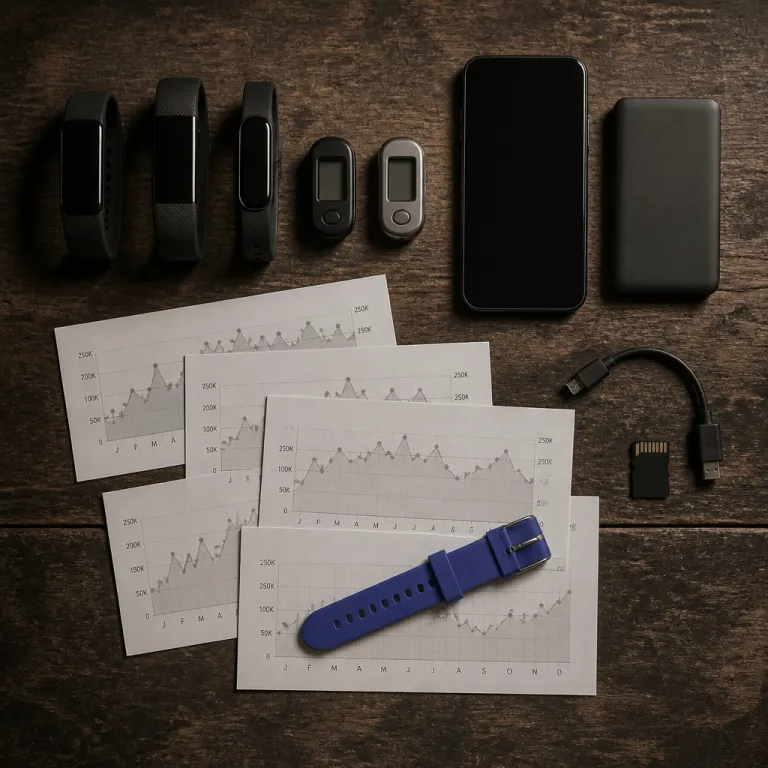
What really happens when you transfer fitness data to a new phone
You finally upgrade your phone and suddenly worry about losing five years of fitness data. The moment you transfer fitness data to a new phone, the reality is that some health data follows cleanly while other metrics, like proprietary scores, vanish quietly in the background. That gap between what you expect to view on the new device and what actually appears on the screen is where most people get burned.
Think of your history as several layers of data rather than one simple file. Raw steps, distance, heart rate and basic workout records usually transfer between apps or at least between phones on the same platform, but deeper health fitness insights such as readiness scores or training load are often locked inside one ecosystem. When you move from a Garmin Vivosmart 4 to an iPhone with an Apple Watch or from a Fitbit Charge 4 to a Samsung Galaxy phone running Samsung Health, the transfer tool you use decides whether your health data arrives intact or only as partial fragments.
On iOS, Apple Health acts as a central vault for health data, while the Health app on the iPhone pulls from your Apple Watch, third party workout apps and sometimes from external services like Garmin Connect. When you set up a new iPhone Pro or Pro Max, an encrypted iCloud backup can restore years of Apple Health data to the new device, but only if you had health data included in the backup settings. If you skipped that step, the new phone feels like a blank slate and you will need to sync Apple Watch data again and rebuild your history from the moment you first tap start on a workout app.
Android users face a similar but slightly messier picture with Google Fit and Google Health Connect acting as hubs. Samsung Health can sync steps, workouts and sleep to Health Connect, which then lets some apps on an iPhone or another Android device import partial data, yet the process is rarely seamless. The key is to treat your fitness data like photos and videos and plan a backup strategy before you change any phone, watch or app ecosystem.
What transfers cleanly and what is lost forever
When you move to an iPhone Apple ecosystem after years with another tracker, the good news is that basic metrics usually survive the trip. Steps, distance, calories, simple workouts and sometimes weight entries can transfer health records into Apple Health or Samsung Health through export and import tools, although the process may require patience and a careful eye on app settings. The bad news is that the clever parts of your old platform, like long term resting heart rate trends or training load curves, rarely make the jump intact.
Garmin Connect, Fitbit, Oura and Polar all calculate their own proprietary scores using raw data and secret algorithms. When you export app data from these services, you typically receive files containing timestamps, heart rate, GPS tracks and sometimes sleep stages, but not the internal baselines that power features such as Body Battery or Daily Readiness. Once you import those files into the Health app on an iPhone or into Samsung Health on a new phone, the new platform sees only raw numbers and must set its own baselines from scratch over the next two to four weeks.
That learning period is the hidden cost of every ecosystem switch, whether you move from an Apple Watch SE to a Garmin Forerunner or from a Fitbit Sense to a Watch iPhone pairing. During those first weeks, your new device will misjudge your recovery, underestimate your VO2max and sometimes mislabel workouts, because it lacks the historical context your previous watch had built. Expect your activity app and every workout app on the new phone to feel slightly off until enough data iPhone samples accumulate to stabilize the algorithms.
Gamification rarely survives either, so streaks, badges and monthly challenges usually reset when you transfer fitness data to a new phone or platform. If you care deeply about those virtual trophies, take screenshots of your old activity app before you switch, because you will not be able to view them inside the new health app later. For a quick comparison, most platforms export CSV, FIT or TCX workout files and Apple Health uses XML, but only steps, distance, calories, heart rate and GPS tracks consistently map between ecosystems while advanced scores stay locked to the original service.
Step by step: switching from Garmin, Fitbit or Apple Watch
Moving from Garmin to an iPhone with an Apple Watch is one of the cleaner transitions, but it still demands deliberate steps. First, open Garmin Connect on your old phone, go to the main menu, tap Settings, then check Connected Apps or Health & Fitness to confirm that Apple Health sync is enabled if you already use an iPhone, or use the Export Data option on the Garmin Connect account page to download CSV or FIT files if you are coming from Android. Once you have the files, you can use a reputable transfer tool on your new iPhone to import workouts, steps and other health data into Apple Health, then let the Apple Watch start contributing fresh data on top.
Fitbit to Samsung Health is trickier, because Google now stores Fitbit data inside your Google account and expects you to stay in that ecosystem. To move, sign in to your Google account, request an export through Google Takeout, choose Fitbit as the source, download the archive when it is ready, then rely on third party apps to parse the CSV or TCX files and push compatible data into Samsung Health on your new phone, accepting that some metrics will never appear. You will still be able to view steps, workouts and basic heart rate in Samsung Health, but advanced sleep scores and stress metrics from your old Fitbit remain locked in the original app.
Apple Watch to Garmin is almost the reverse problem, because Apple Health is generous with imports but stingy with exports. You can export your Apple Health data as an XML file from the Health app on your iPhone by opening your profile, scrolling down to Export All Health Data and saving the archive, then feeding that file into a transfer tool that understands Garmin Connect, yet the process is slow and not every workout type maps perfectly. Once your new Garmin device is set up, give it several weeks of consistent wear so that its training status, HRV status and other health fitness metrics can recalibrate around your current lifestyle rather than your old watch history.
While you are reconfiguring your setup, it is a good moment to rethink hardware comfort and durability. If your old strap was flaking or trapping sweat, consider upgrading to a more resilient band or a breathable silicone watch band for everyday training and sleep tracking. The less you fiddle with the device on your wrist, the more consistent your app data becomes, which ultimately matters more than whether every historical workout made the jump perfectly.
How to protect your health data before and after the switch
The most reliable way to transfer fitness data to a new phone is to treat backups as non negotiable. On an iPhone, that means turning on encrypted iCloud backup or using an encrypted computer backup, then confirming that the Health app and Apple Health data are included in the backup settings before you ever unpair your old Apple Watch. On Android, it means checking Google account backup options in Settings, exporting data from Samsung Health or other apps through their own menus and storing copies of key files somewhere safer than a random downloads folder.
Before you wipe your old device, open every relevant app iPhone users rely on, from the primary workout app to niche sleep trackers, and check their internal backup or sync options. In Apple Health, tap your profile, open Devices and Apps and confirm which services can read and write data; in Samsung Health, open the three dot menu, tap Settings, then Backup and Restore or Connected Services. If you skip this audit, you may later realize that years of carefully logged strength workouts or menstrual cycles never left the old phone.
After you set up the new phone, resist the urge to pair every device at once and instead move methodically. Start with the primary watch iPhone pairing, confirm that sync Apple options are working and that new workouts appear correctly in the activity app, then gradually reconnect secondary devices like smart scales or chest straps. As you go, periodically view your health data inside Apple Health or Samsung Health to confirm that steps, workouts and heart rate are flowing from each device and that no app is writing duplicate or conflicting entries.
Think about privacy as well as continuity, because health data is among the most sensitive information on any device. Use strong passcodes, enable two factor authentication on accounts that store app data and be cautious with third party transfer tools that request broad access to your Apple Health or Samsung Health records. Your goal is a setup where photos and videos, messages and fitness data all survive a future phone upgrade with minimal drama and without exposing your health history to unnecessary risk.
Troubleshooting when your fitness history does not show up
Sometimes you do everything right and still open the Health app on a new iPhone to find an empty timeline. Start by checking whether the old phone actually finished its iCloud backup or whether the encrypted computer backup completed successfully, because an interrupted backup often explains missing health data. If the backup looks fine, confirm that the restore process on the new device used the correct backup and that you did not accidentally set the phone up as new.
When the backup path fails, your next move is to inspect each individual app and device. On an Apple Watch, open the Watch app on the iPhone, verify that fitness tracking is enabled and that the watch is allowed to write health data into Apple Health by checking the Privacy and Health sections, then perform a short workout to test sync. On Samsung Health or other Android apps, open the settings screen, confirm that the correct account is signed in, that sync is turned on and that Health Connect or Google Fit permissions are granted, then wait a few minutes before you view the updated data on the phone.
If you still cannot see your history, consider whether you changed ecosystems in a way that breaks automatic transfer. Moving from Fitbit to Apple Health or from Oura to Samsung Health usually requires manual exports and imports, and even then only partial data may arrive, so you might need to accept that some metrics are gone. In those cases, focus on getting clean, consistent data from the new device rather than chasing every lost detail from the old platform.
Hardware issues can also masquerade as sync problems, especially if your watch band is loose or damaged. A poorly fitting strap can cause erratic heart rate readings, which then look like missing or corrupted data when you view them later in the activity app or workout app, so it is worth checking the physical fit and, if needed, learning how to safely remove links from a watch band or swap to a different size for a better fit. In the end, the value of five years of step data lies less in perfect continuity and more in how you use the next five years of movement to shape your health.
FAQ
Can I transfer all my old fitness data to a new iPhone?
You can usually transfer most core fitness data to a new iPhone, including steps, workouts and heart rate, if you use an encrypted iCloud or computer backup that includes Apple Health. Third party apps may need their own cloud sync or manual export and import, so you should check each app’s settings before switching phones. Proprietary scores and badges from platforms like Fitbit or Garmin rarely transfer fully into Apple Health or the Health app.
What happens to my Apple Watch data when I change iPhones?
When you unpair an Apple Watch from an old iPhone, the phone creates a fresh backup that includes watch settings and recent health data. Restoring that backup onto the new iPhone and then pairing the watch again usually brings your history forward, as long as Apple Health was included in the encrypted backup. If you set the new phone up as a completely new device without restoring, your Apple Watch will start collecting data from scratch.
Will my Fitbit or Garmin history show up in Apple Health?
Some Fitbit and Garmin data can appear in Apple Health through official integrations or third party transfer tools, especially steps, workouts and basic heart rate. However, advanced metrics such as training load, readiness scores or detailed sleep stages often stay locked in the original apps and do not map cleanly into Apple Health. You should expect partial transfer at best and plan to let your new device rebuild its own baselines over several weeks.
How long does a new tracker need to relearn my patterns?
Most modern trackers need between two and four weeks of consistent wear to rebuild accurate baselines for resting heart rate, HRV and sleep patterns. During that period, recovery scores, training readiness and calorie estimates may feel slightly off compared with your previous device. After enough new data accumulates, the algorithms adapt to your current lifestyle and the metrics stabilize.
Should I keep my old phone or watch after switching?
Keeping your old phone or watch for a few weeks after switching is wise, because it lets you confirm that all critical data has transferred and that no app requires a last minute export. You can also use the old device as a reference to compare trends while the new platform learns your patterns. Once you are confident that backups, sync and daily tracking work correctly, you can safely wipe or recycle the old hardware.